Most people know Cursor as an AI-powered code editor - a supercharged fork of Visual Studio Code that gives developers intelligent code completions, refactoring capabilities, and contextual assistance. But there's an untapped potential here that extends far beyond the realm of software development. I've been using Cursor for nearly all of my non-coding work, and it's quickly become my favorite productivity tool.
Cursor can (and should) be your digital command center for nearly everything you do (And for you Windsurf fans out there, everything here applies for you, too).
Why Cursor for non-coding work?
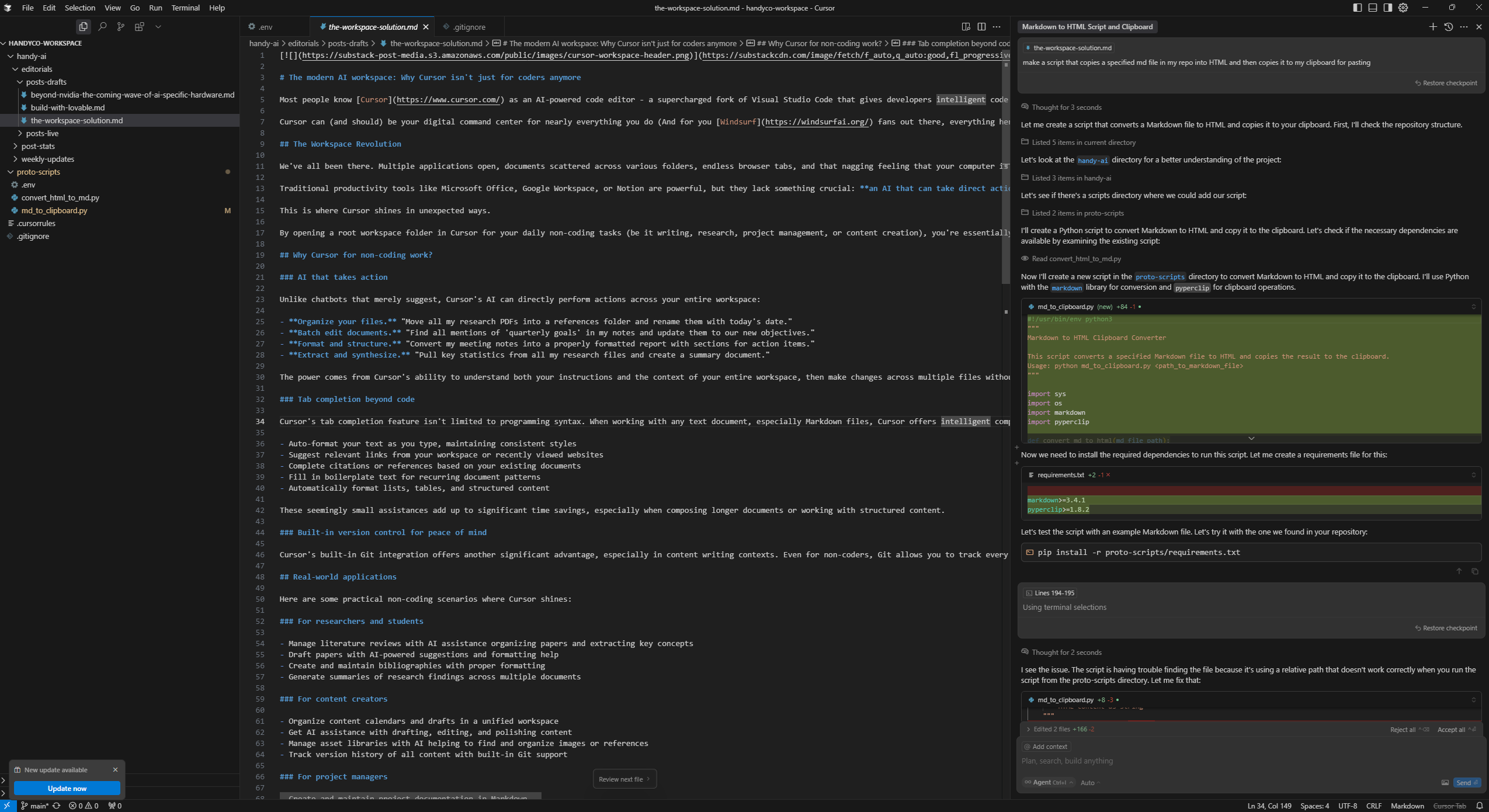
We've all been there. Multiple applications open, documents scattered across various folders, endless browser tabs, and that nagging feeling that your computer is working against you rather than for you.
Traditional productivity tools like Microsoft Office, Google Workspace, or Notion are powerful, but they lack something crucial: an AI that can take direct action on your files and folders.
This is where Cursor shines in unexpected ways.
By opening a root workspace folder in Cursor for your daily non-coding tasks (be it writing, research, project management, or content creation), you're essentially giving an AI assistant direct access to help organize, edit, and enhance your work.
AI that takes action
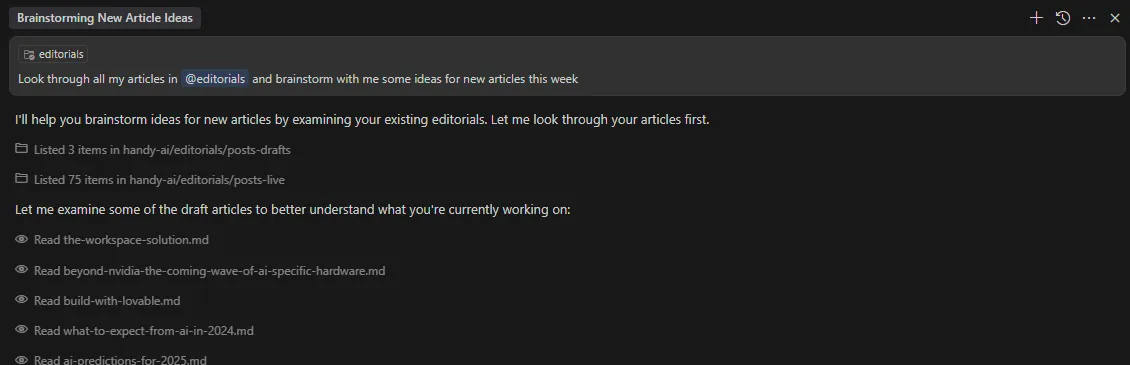
Unlike chatbots that merely suggest, Cursor's Agent can directly perform actions across your entire workspace:
- Organize your files. "Move all my research PDFs into a references folder and rename them with today's date."
- Batch edit documents. "Find all mentions of 'quarterly goals' in my notes and update them to our new objectives."
- Format and structure. "Convert my meeting notes into a properly formatted report with sections for action items."
- Extract and synthesize. "Pull key statistics from all my research files and create a summary document."
The power comes from Cursor's ability to understand both your instructions and the context of your entire workspace, then make changes across multiple files without you having to manually implement every suggestion (using Python scripts or whatever methods it feels necessary).
Tab completion beyond code
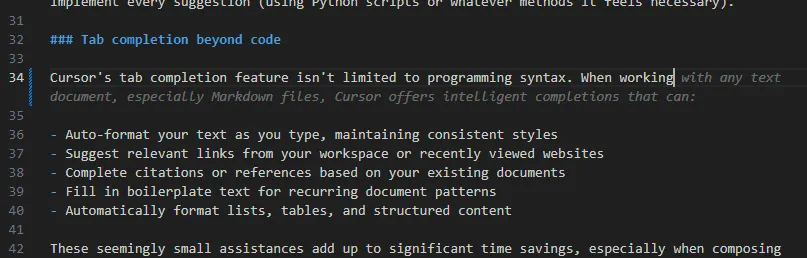
Cursor's tab completion feature isn't limited to programming syntax. When working with any text document, especially Markdown files, Cursor offers intelligent completions that can:
- Auto-format your text as you type, maintaining consistent styles
- Suggest relevant links from your workspace or recently viewed websites
- Complete citations or references based on your existing documents
- Fill in boilerplate text for recurring document patterns
- Automatically format lists, tables, and structured content
These seemingly small assistances add up to significant time savings, especially when composing longer documents or working with structured content.
Built-in version control for peace of mind
Cursor's built-in Git integration offers another significant advantage, especially in content writing contexts. Even for non-coders, Git allows you to track every change to your documents, revert to previous versions when needed, and maintain a complete history of your work. This gives you the confidence to experiment freely, knowing you can always go back to any previous state of your documents.
The latest AI models without extract subscriptions
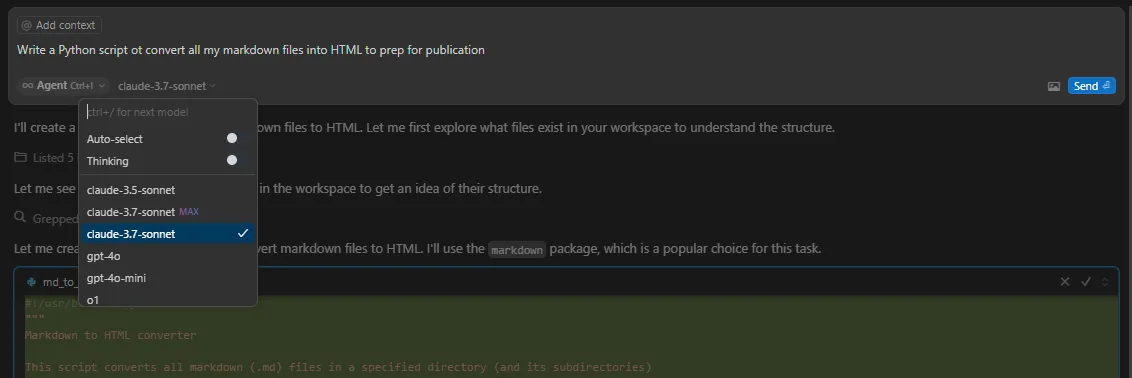
One of Cursor's most compelling advantages is access to multiple state-of-the-art AI models without forking over the cash for multiple subscriptions. For a single $20/month subscription, Cursor provides unlimited access to:
- Claude 3.7 Sonnet. Anthropic's powerful model with advanced reasoning capabilities
- GPT-4o. OpenAI's latest generation model with enhanced coding and text capabilities
- Gemini 1.5 Flash. Google's model optimized for long-context interactions
Beyond the included models, Cursor allows you to connect your own API keys (at cost) for even greater flexibility:
- OpenAI API keys. Use any OpenAI models you have access to through your own account (o1, o3-mini, others)
- Anthropic API keys. Connect directly to Claude models at your own cost
- Google API keys. Access other Gemini models through your Google API credentials
Cursor also supports OpenRouter, a unified interface for multiple LLM providers, allowing you to connect your workspace to virtually any LLM provider out there (including DeepSeek and many, many more).
This effectively eliminates the need for separate subscriptions to ChatGPT Plus, Claude, or other AI services. You're getting enterprise-grade AI capabilities built directly into your workspace environment.
Real-world applications
Here are some practical non-coding scenarios where Cursor shines:
- For researchers and students
- Manage literature reviews with AI assistance organizing papers and extracting key concepts
- Draft papers with AI-powered suggestions and formatting help
- Create and maintain bibliographies with proper formatting
- Generate summaries of research findings across multiple documents
- For content creators
- Organize content calendars and drafts in a unified workspace
- Get AI assistance with drafting, editing, and polishing content
- Manage asset libraries with AI helping to find and organize images or references
- Track version history of all content with built-in Git support
- For project managers
- Create and maintain project documentation in Markdown
- Generate reports from raw data files
- Track tasks and updates across multiple project documents
- Use AI to summarize status updates from team documentation
- For personal knowledge management
- Build and navigate your personal knowledge base
- Link notes and concepts with an intelligent system that understands connections
- Use AI to help refine ideas, generate summaries, and extract action items
- Keep everything version-controlled and accessible
Getting started with Cursor in your workspace
- Download Cursor from cursor.com
- Create a dedicated workspace folder for your non-coding project (or projects)
- Open this folder as a workspace in Cursor
- Add a .cursorrules file in your root directory with guidelines for how AI should handle your documents (get creative; different projects may have different guidelines)
- Learn the keyboard shortcuts for AI assistance (Cmd+K for editing, Cmd+I for inline commands)
Unlimited customization for advanced workflows
Where Cursor starts to get really crazy as a workspace solution is its virtually limitless customization potential. Far beyond just being an editor with AI capabilities, Cursor can become a central command center that connects to virtually any external system, tool, or data source.
Model Context Protocol: Extending AI capabilities
Model Context Protocol (MCP) is an open standard that allows Cursor to connect with external data sources and tools (think APIs for AI). This means your AI assistant can:
- Query databases directly. Connect to SQL, MongoDB, or any database to fetch, analyze, and manipulate data
- Access knowledge bases. Pull information from Notion, Confluence, or internal documentation
- Interact with version control. Create branches, generate pull requests, and manage git workflows
- Process specialized data. Connect to data analysis tools, visualization libraries, or industry-specific systems
Setting up an MCP server can be as simple as creating a small script that responds to specific commands (and hey, you can ask the Agent to help you with that). This effectively turns Cursor into an orchestration layer that can control any external system that has an API or command-line interface.
Custom scripts: Automation your workspace
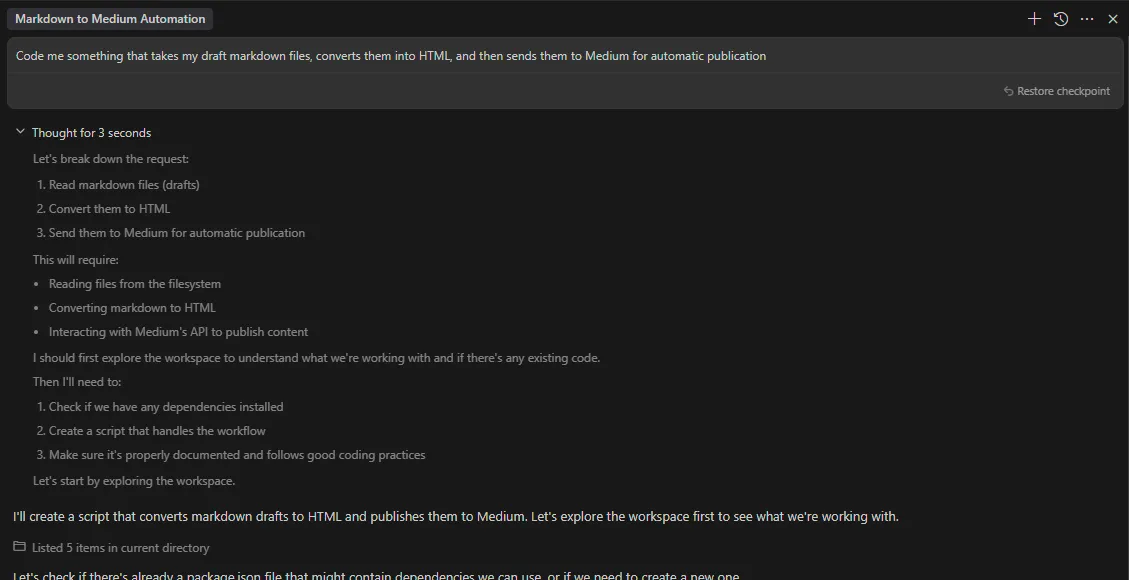
The ability to run scripts directly from Cursor in general transforms makes it a powerful automation hub:
- Build data pipelines. Create scripts that pull data from multiple sources, process it, and generate reports
- Automate publishing workflows. Set up scripts that prepare content, optimize images, and deploy to publishing platforms
- Generate dynamic content. Create scripts that fetch real-time data and inject it into your documents
- Customize AI behaviors. Write scripts that pre-process your content before AI acts on it, or post-process AI outputs
Since Cursor is built on the VS Code architecture, it inherits a vast ecosystem of extensions and capabilities that can be leveraged for non-coding tasks.
Real-world advanced examples
Once you start to really think about Cursor as an open-ended workspace where you can instructre your Agent to do basically anything on your documents and data, the possibilities are mind-boggling:
- A journalist could create a workspace that connects to news APIs, scrapes relevant websites, manages interview transcripts, and automatically formats articles for publication.
- A researcher could build connections to academic databases, data analysis tools, and collaboration platforms, with custom scripts that format citations and generate literature reviews.
- A project manager could set up automated reporting that pulls data from JIRA, analyzes GitHub activity, and creates weekly status reports with visual progress indicators.
- A content creator could integrate with social media APIs, media asset management systems, and analytics platforms to create a comprehensive and completely customizable content management system.
What makes all this uniquely powerful is that these integrations live within your workspace, not as separate applications you need to context-switch between. The Agent becomes the interface layer that understands both your intent and how to utilize these connections to accomplish complex tasks.
The future of work is agentic
As AI agents continue to evolve, the lines between coding and non-coding tools can and will blur. Cursor (and Windsurf) represents an early example of what's possible when we expand our thinking about development tools beyond their original purpose.
The most powerful productivity boost won't come from yet another app in your workflow, it's from making your existing workflows smarter, more open, and slapping an AI agent on top of them. Transforming Cursor from a coding environment to your central workspace goes beyond just adopting a new tool, it's about embracing a new way of working where AI becomes an active participant in your daily tasks.
Try it for a week. Open a workspace folder in Cursor for your next non-coding project. You might be surprised at how quickly it becomes indispensable.