
Most people know Cursor as an AI-powered code editor - a supercharged fork of Visual Studio Code that gives developers intelligent code completions, refactoring capabilities, and contextual assistance. But there's an untapped potential here that extends far beyond the realm of software development. I've been using Cursor for nearly all of my non-coding work, and it's quickly become my favorite productivity tool.
Cursor can (and should) be your digital command center for nearly everything you do (And for you Windsurf fans out there, everything here applies for you, too).
Why Cursor for non-coding work?

We've all been there. Multiple applications open, documents scattered across various folders, endless browser tabs, and that nagging feeling that your computer is working against you rather than for you.
Traditional productivity tools like Microsoft Office, Google Workspace, or Notion are powerful, but they lack something crucial: an AI that can take direct action on your files and folders.
This is where Cursor shines in unexpected ways.
By opening a root workspace folder in Cursor for your daily non-coding tasks (be it writing, research, project management, or content creation), you're essentially giving an AI assistant direct access to help organize, edit, and enhance your work.
AI that takes action
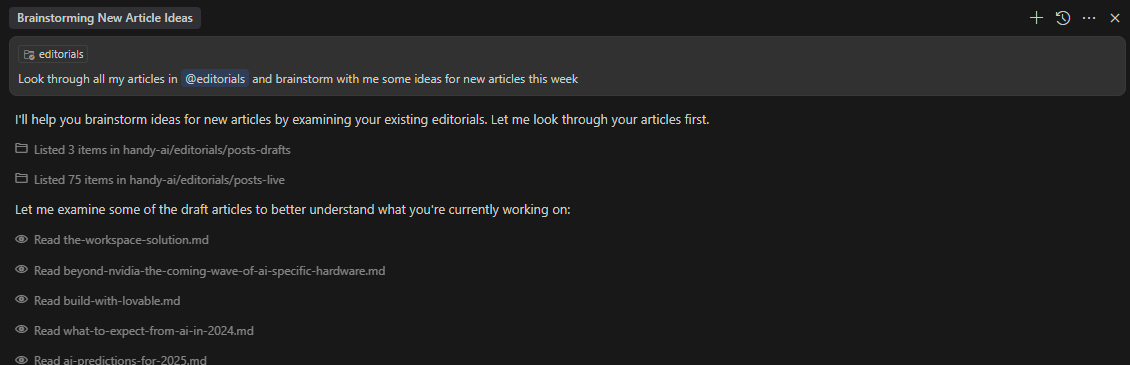
Unlike chatbots that merely suggest, Cursor's Agent can directly perform actions across your entire workspace:
- Organize your files. "Move all my research PDFs into a references folder and rename them with today's date."
- Batch edit documents. "Find all mentions of 'quarterly goals' in my notes and update them to our new objectives."
- Format and structure. "Convert my meeting notes into a properly formatted report with sections for action items."
- Extract and synthesize. "Pull key statistics from all my research files and create a summary document."
The power comes from Cursor's ability to understand both your instructions and the context of your entire workspace, then make changes across multiple files without you having to manually implement every suggestion (using Python scripts or whatever methods it feels necessary).
Tab completion beyond code
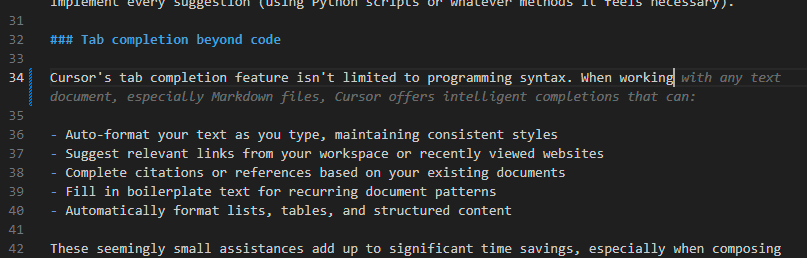
Cursor's tab completion feature isn't limited to programming syntax. When working with any text document, especially Markdown files, Cursor offers intelligent completions that can:
- Auto-format your text as you type, maintaining consistent styles
- Suggest relevant links from your workspace or recently viewed websites
- Complete citations or references based on your existing documents
- Fill in boilerplate text for recurring document patterns
- Automatically format lists, tables, and structured content
These seemingly small assistances add up to significant time savings, especially when composing longer documents or working with structured content.
Built-in version control for peace of mind
Cursor's built-in Git integration offers another significant advantage, especially in content writing contexts. Even for non-coders, Git allows you to track every change to your documents, revert to previous versions when needed, and maintain a complete history of your work. This gives you the confidence to experiment freely, knowing you can always go back to any previous state of your documents.
The latest AI models without extra subscriptions
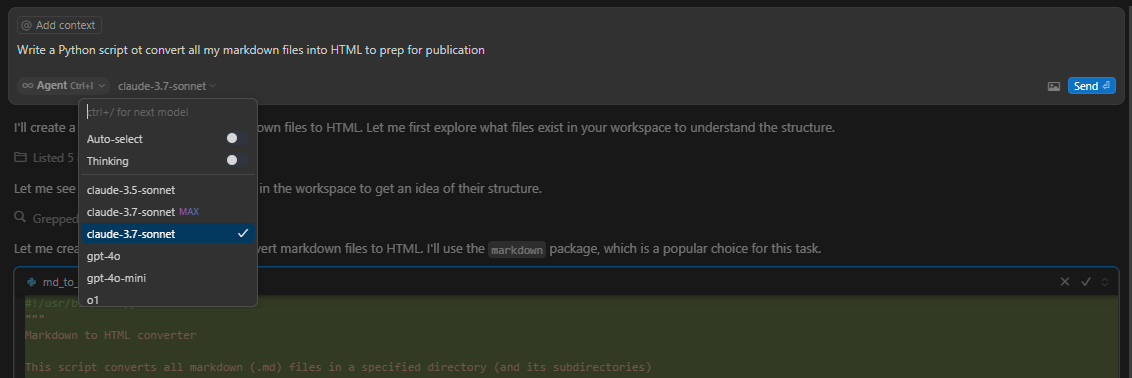
One of Cursor's most compelling advantages is access to multiple state-of-the-art AI models without forking over the cash for multiple subscriptions. For a single $20/month subscription, Cursor provides unlimited access to: