

If you've read our previous article on using Cursor as a modern AI workspace, you already know that this powerful tool extends far beyond its original purpose as a code editor.
For content creators, marketers, and social media managers, juggling multiple platforms, creating consistent content, scheduling posts, and analyzing performance metrics can quickly become overwhelming. This is where Cursor's AI-powered workspace can shine, helping you manage your social media presence more efficiently and effectively.
The AI workspace concept refresher
Before diving into specifics, let's quickly recap what makes Cursor (and Windsurf) special as a workspace:
Cursor is fundamentally an AI-powered code editor built on VS Code that gives you access to powerful AI models like Claude 3.7 Sonnet and GPT-4.1. But what makes it uniquely valuable is its ability to:
- Take direct action on your files and folders. The AI can organize, edit, and enhance any content in your workspace
- Access contextual information. It understands relationships between files and can work across multiple documents
- Use intelligent automation. It can generate scripts, process data, and automate repetitive tasks
- Connect to external systems. Through custom scripts and the Model Context Protocol (MCP), it can interact with APIs and tools
For social media management, these capabilities can translate into a powerful command center where you can centralize all your content, planning, and analytics in one place with an AI assistant that can help at every step.
Using Cursor for social media management
Setting up your AI workspace
Before diving into specific use cases, setting up a well-organized workspace will make Cursor much more effective for social media management:
File structure
Create a logical folder structure that organizes your content by platform, campaign, or time period:
/social-media/
 /platforms/
 /instagram/
 /twitter/
 /linkedin/
 /facebook/
 /campaigns/
 /summer-launch-2025/
 /winter-sale-2025/
 /templates/
 /assets/
 /images/
 /videos/
 /analytics/
 /brainstorming/
 /content-calendar/
Using .cursorrules
The .cursorrules file is a powerful way to guide Cursor's AI to follow your specific social media standards and practices. Place it in your root directory:
# Social Media Management Rules

## Content Guidelines
- Instagram captions should be 70-100 words with 5-10 hashtags
- Twitter posts must be under 280 characters with 1-2 hashtags
- LinkedIn content should maintain professional tone with industry insights
- Facebook posts should include a question or call-to-action

## Brand Voice
- Use conversational but professional language
- Avoid jargon except when targeting technical audience
- Use brand-specific phrases: ["phrase1", "phrase2"]
- Maintain consistent emoji usage across platforms

## Workflow
- Always check analytics before planning new content
- Reference content calendar for posting frequency
- Use platform-specific image dimensions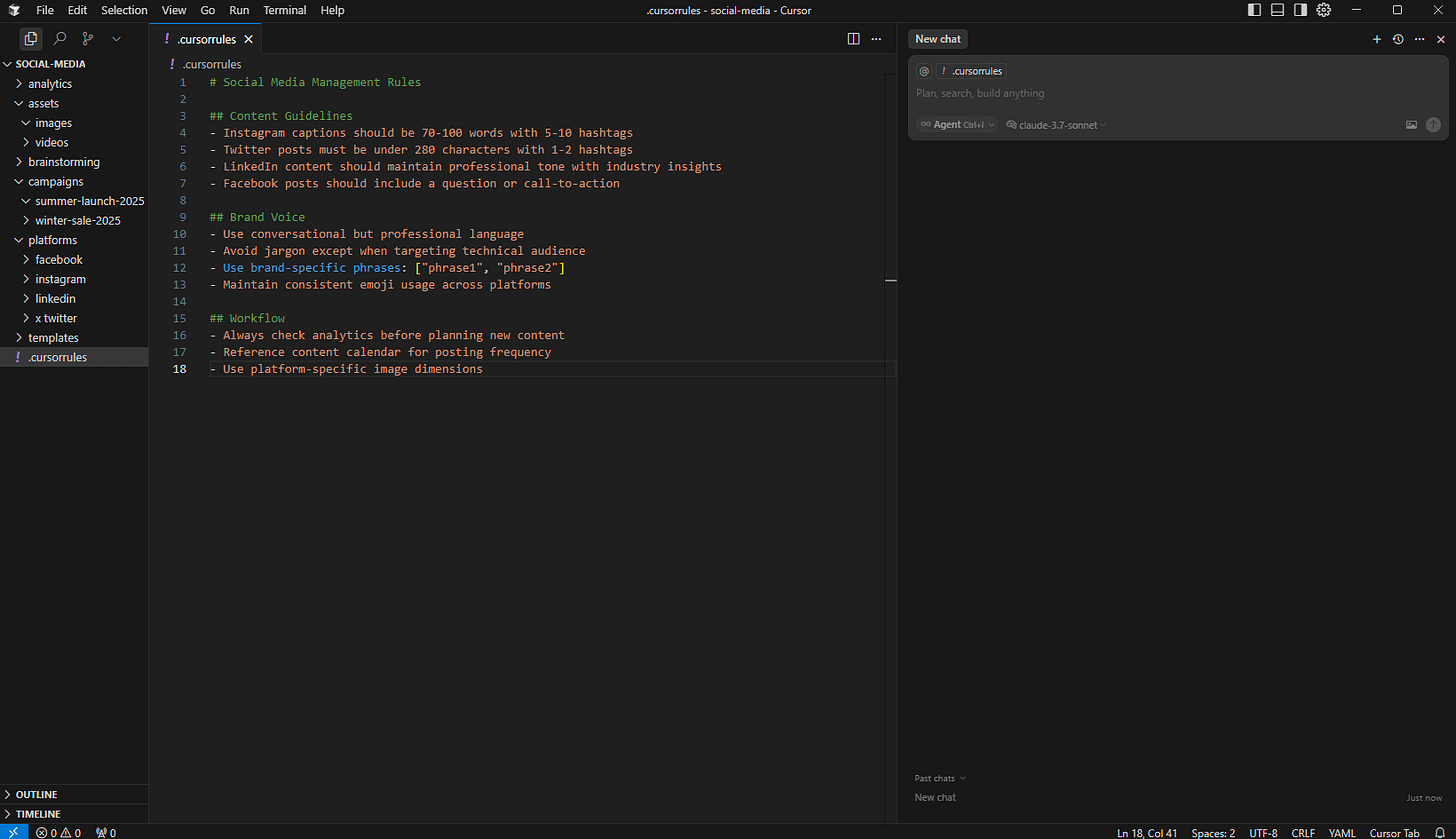
Now let's explore specific ways to use Cursor for social media tasks.
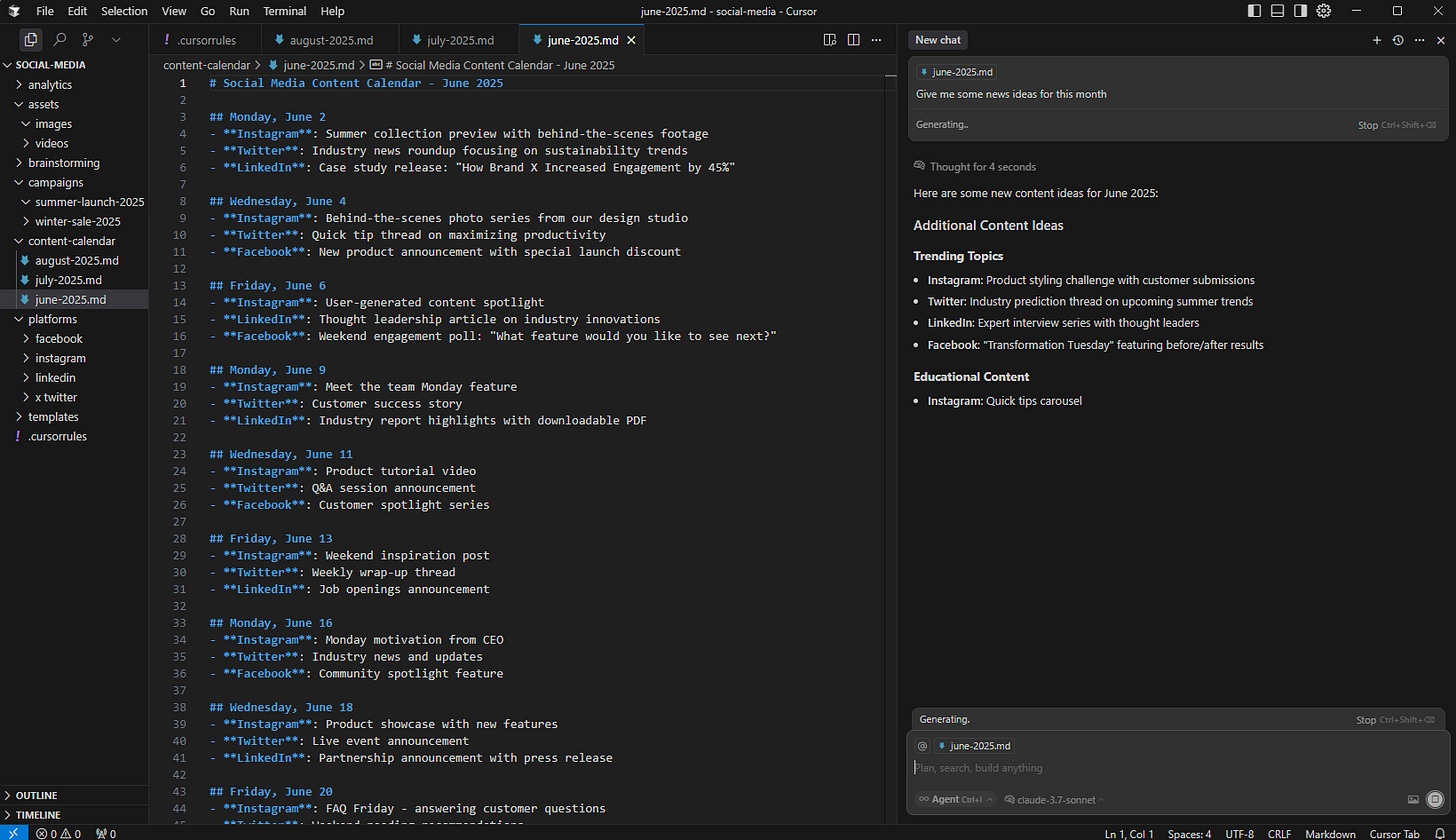
1. Content calendar organization
Create a structured content calendar in markdown files that the AI can help you maintain:
# Social Media Content Calendar - June 2025

## Monday, June 2
- Instagram: [Summer collection preview]
- Twitter: [Industry news roundup]
- LinkedIn: [Case study release]

## Wednesday, June 4
- Instagram: [Behind-the-scenes photo]
- Twitter: [Quick tip thread]
- Facebook: [New product announcement]
The AI can help you:
- Generate content ideas for specific dates
- Fill in gaps in your calendar
- Maintain consistent posting schedules across platforms
- Reorganize content by platform, theme, or campaign
2. Content drafting and adaptation
Cursor excels at helping you draft and adapt content for different platforms:
- Draft a long-form LinkedIn post
- Ask Cursor to adapt it for Twitter's shorter format
- Transform it into Instagram caption style with appropriate hashtags
- Generate complementary stories or thread content