
In our previous article on the modern AI workspace, we introduced how Cursor (or Windsurf) can serve as more than just a code editor. One of the more promising use cases we highlighted was project management, a world ripe with opportunities for fine tuned automation.
Today we’re showing you exactly how to transform Cursor into a powerful project management tool that can automate tedious tasks, generate reports, and help keep your entire team on the same page.
Basic project management with Cursor
Before diving into advanced automations, let's go over some base project management workflows in Cursor.
Setting up your new AI workspace
Start by creating a dedicated workspace folder structure (or, open up your full existing work directory as a root folder in Cursor). You can do this by booting up Cursor, selecting “Open folder”, and then creating a new folder (or selecting an existing directory where your files are that you want the AI Agent to work with). Here’s an example:
project-management/
├── documentation/
│ ├── requirements.md
│ ├── architecture.md
│ └── procedures.md
├── sprints/
│ ├── sprint-1/
│ ├── sprint-2/
│ └── current-sprint/
├── meeting-notes/
├── reports/
└── .cursorrules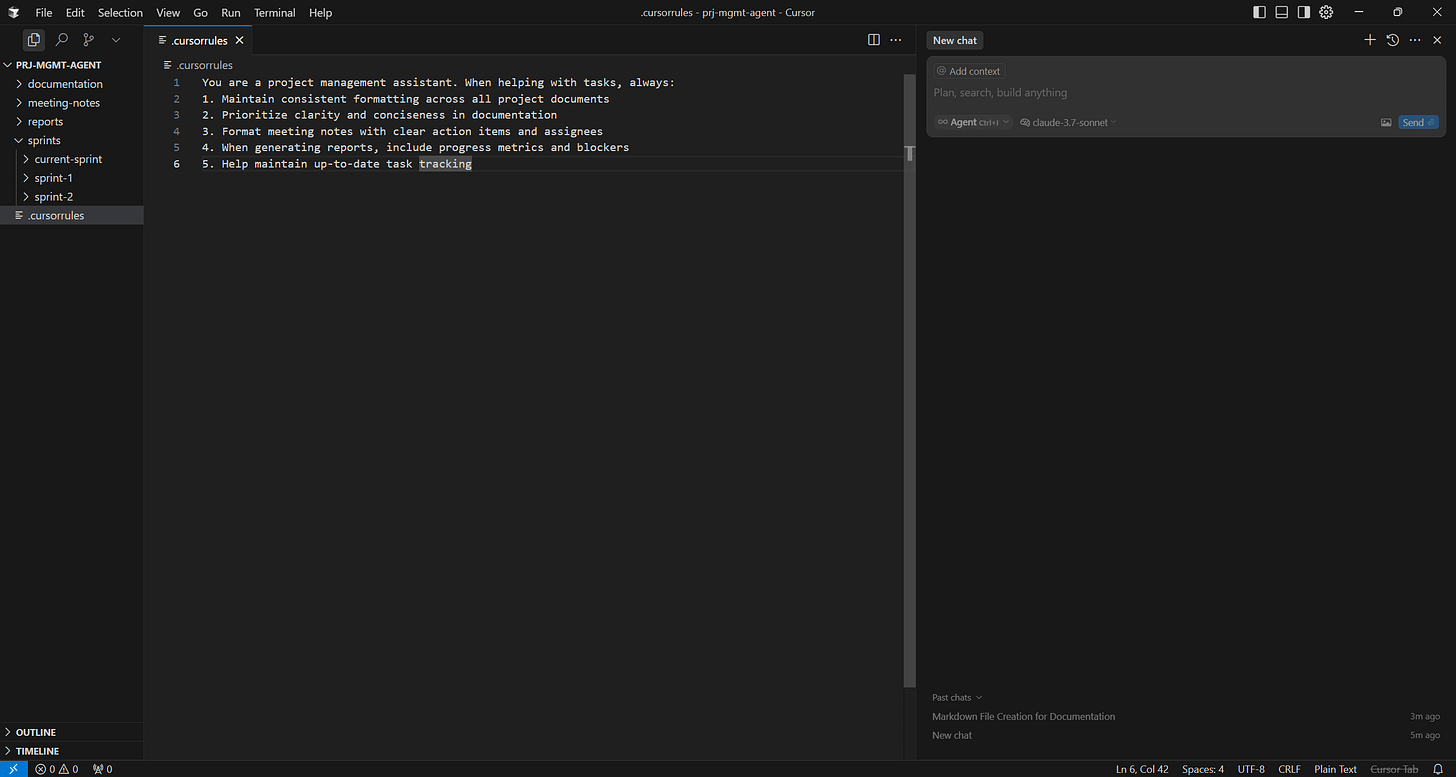
The .cursorrules file is particularly important—it helps train the AI to understand how to interact with your project documentation. Here's a sample to get you started:
You are a project management assistant. When helping with tasks, always:
1. Maintain consistent formatting across all project documents
2. Prioritize clarity and conciseness in documentation
3. Format meeting notes with clear action items and assignees
4. When generating reports, include progress metrics and blockers
5. Help maintain up-to-date task tracking
Creating and maintaining project documentation
One of Cursor's strengths is maintaining consistent documentation. Here's how to leverage the AI for this purpose:
- Open a documentation file and use
Cmd+L(orCtrl+Kon Windows) to bring up the AI Agent (a chatbot that can take action on your files, essentialy) - Try these prompts: - "Update this requirements document based on the feedback in our latest meeting notes" - "Create a template for documenting user stories with acceptance criteria" - "Format this document with proper Markdown headings, lists, and tables"
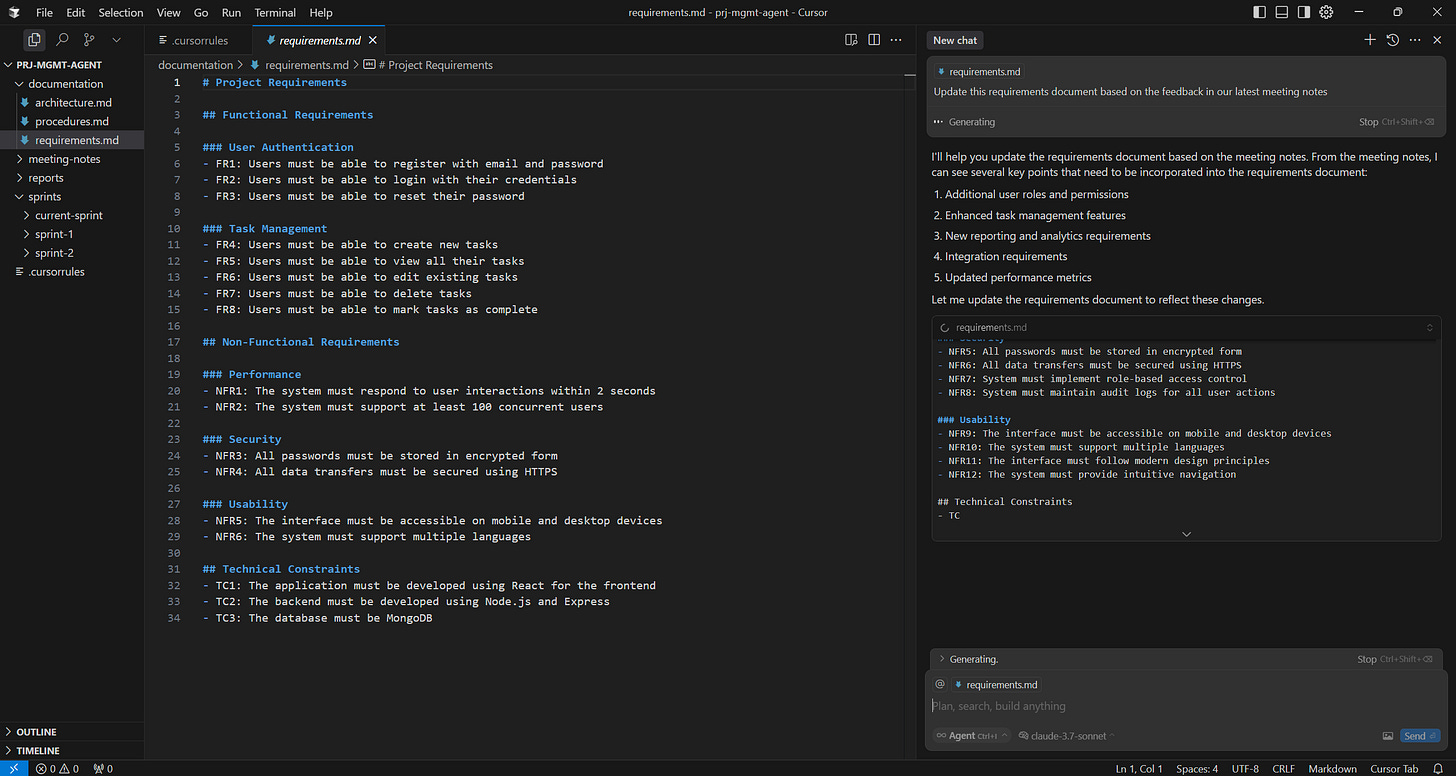
Cursor’s Agent will automatically parse your request and hunt for documents to use for the request (for example, in that first request referencing “our latest meeting notes”, the Agent will go look for the newest notes in your /meeting-notes/ directory). If you want to make sure it uses a specific document, you can use “@” to tag just about anything present in your workspace.
If you prefer to edit your documents or talk to the Agent inside of your documents, you can highlight or click anywhere in a file and hit Cmd+K/Ctrl+K. This will pop open a little window to assist with quick inline tasks, wherever needed.
Task and issue tracking in Markdown
While dedicated tools like JIRA exist (and your company likely demands you use it, whether you want to or not), maintaining a lightweight task tracking system directly in your workspace offers unique advantages:
# Current Sprint Tasks

## In Progress

- [ ] Redesign login screen (@alex)
 - Deadline: June 15
 - Priority: High
 - Notes: Need to incorporate new brand guidelines
- [ ] Fix payment processing bug (@sarah)
 - Deadline: June 12
 - Priority: Critical
 - Related issues: #452, #488

## Completed

- [x] Update user documentation (@jamie)
 - Completed: June 8
 - Notes: Approved by product team
Ask Cursor's Agent to help you:
- "Update the status of the payment processing task to 'Completed' and move it to the right section"
- "Add a new high-priority task for security audit with a deadline of next Friday"
- "Give me a summary of all tasks assigned to Alex that are still in progress"
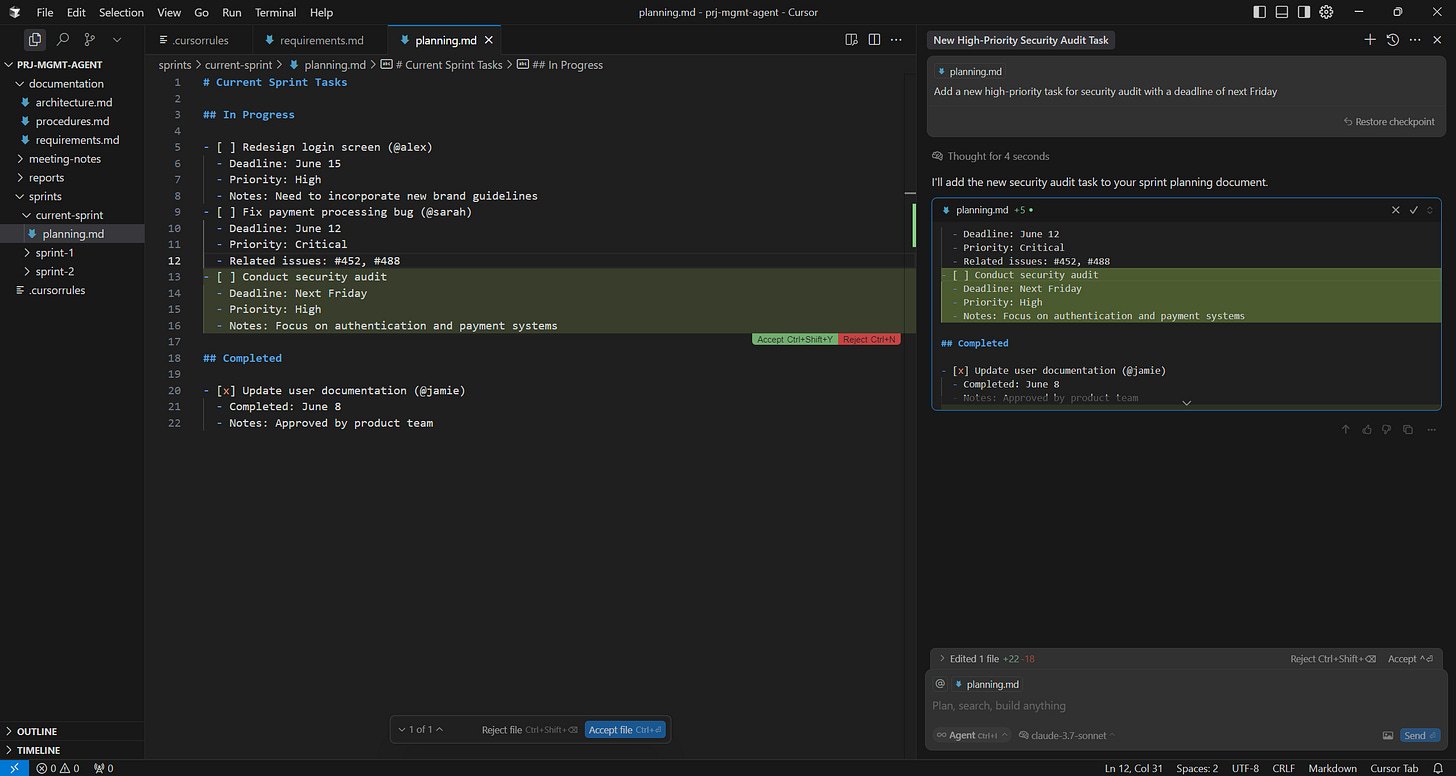
📝 Note! Make sure you’re starting a new chat with each distinct request by clicking the “+” button in the upper right of the Agent window (or just hitting Cmd+N/Ctrl+N while the window is selected). This will ensure that your Agent will stay focused on the current task. You can even open multiple chat windows if desired, and have up to four Agents running tasks for you simultaneously.
Meeting notes and action items
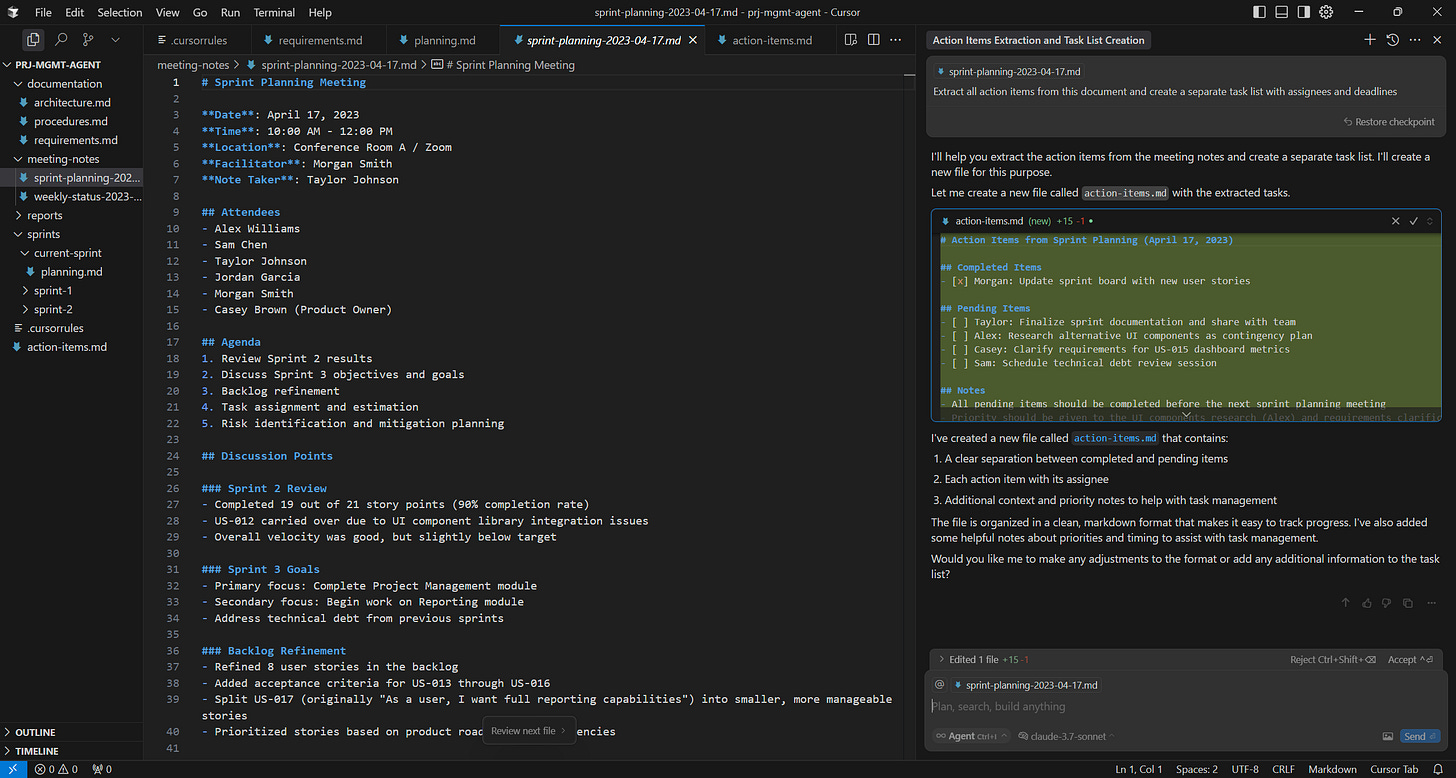
Cursor excels at transforming rough notes into structured documentation:
- Paste your raw meeting notes into a new file
- Ask the Agent: "Format these meeting notes with clear sections for decisions, action items, and discussion points"
- For follow-ups: "Extract all action items from this document and create a separate task list with assignees and deadlines"
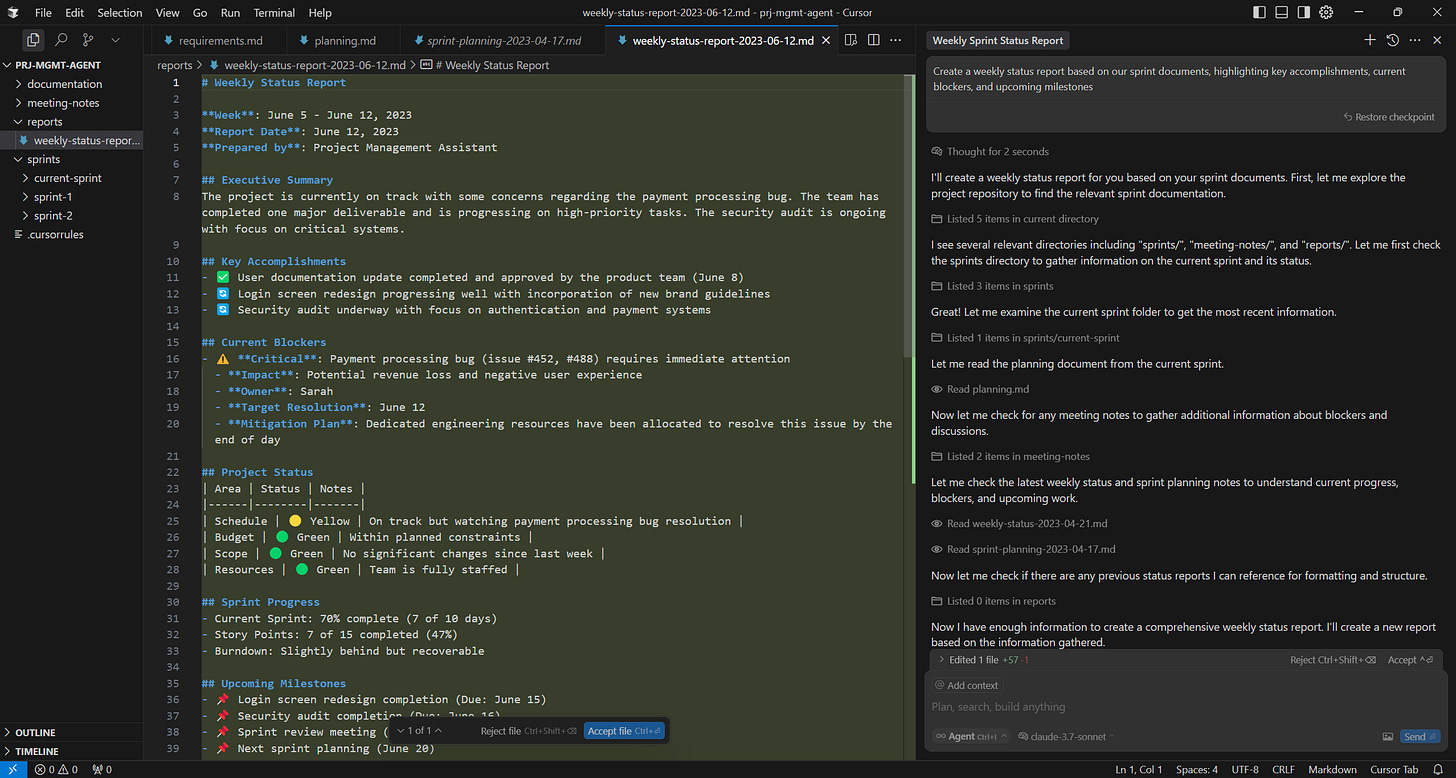
Quick status reports
Generate status reports directly from your project documentation:
- Use
Cmd+L/Ctrl+Land prompt: "Create a weekly status report based on our sprint documents, highlighting key accomplishments, current blockers, and upcoming milestones" - The AI Agent will scan and analyze your workspace, pulling relevant information from multiple files to generate a comprehensive report
Advanced use: Automated reporting with JIRA and GitHub integration
Now let's get serious. Opening up Cursor to the outside work via APIs gives us practically infinite possibilities. Once such possibility is automated reporting that pulls data from external tools.