
Finance professionals and everyday folks who manage their own finances are sitting on a (figurative) goldmine of opportunity. With AI automation becoming mainstream in accounting and finance, we're seeing unprecedented potential to streamline everything from invoice processing to personal budgeting. Today, we're showing you how to transform Cursor into a powerful finance automation tool that can handle tedious tasks, generate insights, and help you make smarter money decisions ($).
Don’t care about finance? Check out our AI workspace guides for project managers and social media managers!
Automate your finances!
The numbers don't lie. A Thomson Reuters survey found that 52% of tax and accounting professionals already use generative AI for routine tasks like bookkeeping and tax research. Meanwhile, the World Economic Forum predicts accounting and bookkeeping clerks will be among the fastest declining jobs in the next five years due to AI automation.
Don’t panic just yet: this isn't about replacing financial professionals. Like with all the best use cases for modern AI systems, it's about freeing them up to focus on what really matters. Studies show that workers who use AI agents are 72% more likely to feel "very productive" at their job. For accountants specifically, AI lets them shift from data entry to analysis and strategy, allowing humans to focus on what matters.
Whether you're a CPA managing client books or someone trying to get your personal finances in order (who isn’t), AI can handle the grunt work while you focus on the insights and decisions that actually drive results.
Basic finance automation with Cursor
Let's start with the fundamentals. Setting up an AI-powered finance workspace is easier than you think.
Creating your finance workspace
First, create a dedicated workspace folder structure in Cursor. Open Cursor, select "Open folder", create a new folder wherever called “finance-automation”, and set up something like this:
finance-automation/
├── personal-finance/
│ ├── budgets/
│ ├── transactions/
│ ├── tax-docs/
│ └── reports/
├── business-finance/
│ ├── invoices/
│ ├── expenses/
│ ├── reconciliation/
│ └── client-reports/
├── templates/
└── .cursorrules
The .cursorrules file here is crucial for training the AI to understand your financial context. Try putting something like this in there:
You are a finance automation assistant. When helping with tasks, always:
1. Maintain accuracy and attention to detail with all financial data
2. Follow proper accounting principles and tax regulations
3. Provide clear audit trails for all automated processes
4. Flag potential errors or anomalies for human review
5. Keep sensitive financial information secure
6. Format reports in professional, client-ready formats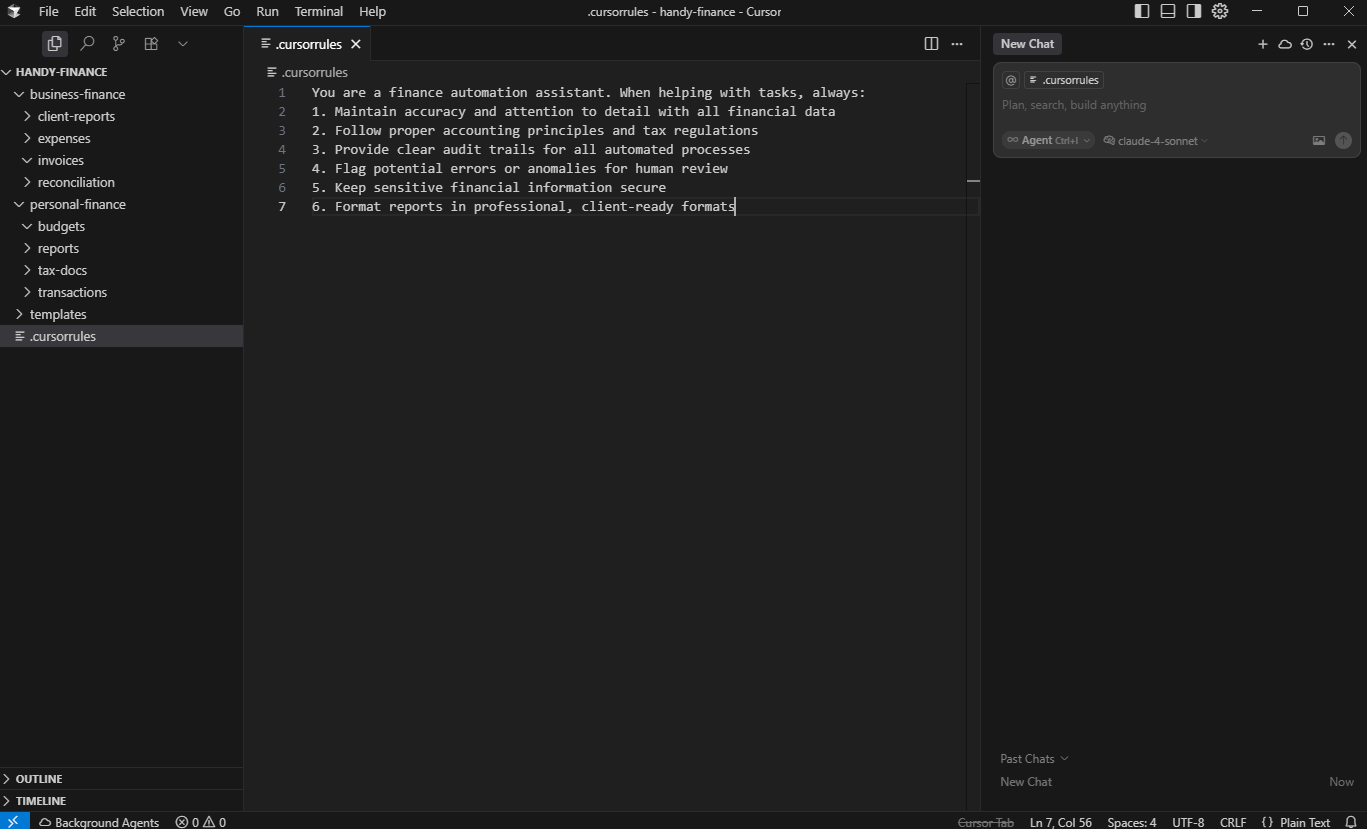
From here, you’re ready to start experimenting. Chatting with Cursor’s sidebar agent is the best place to start. The agent can see all the files inside your directory, explore them, search the internet, and start taking actions.
Automating expense tracking and categorization
One of the most time-consuming finance tasks is categorizing expenses. Here's how to let Cursor's AI agent handle this:
- Upload your bank statements or expense receipts to your workspace
- Use
Cmd+L(orCtrl+Lon Windows) to bring up the Agent - Try prompts like:"Categorize these expenses according to IRS tax categories"
- "Extract all business meals from this credit card statement"
- "Create a monthly expense report from these receipts"
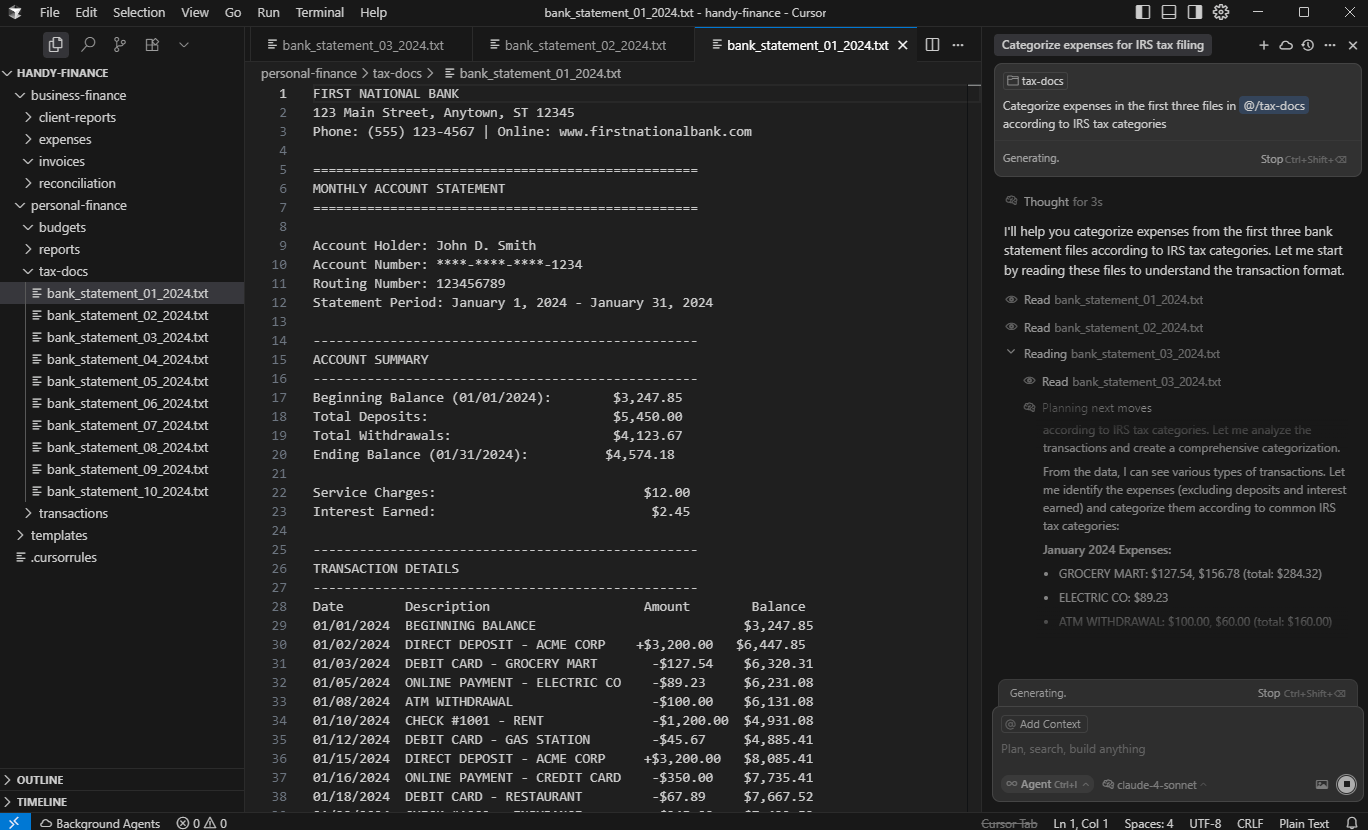
Be sure to reference specific directories where your files are, not just individual files. The agent will scan your documents, extract the relevant information, and automatically categorize everything. It can even learn your specific categorization preferences over time (why are you buying so much Chipotle?).
Invoice processing and accounts payable
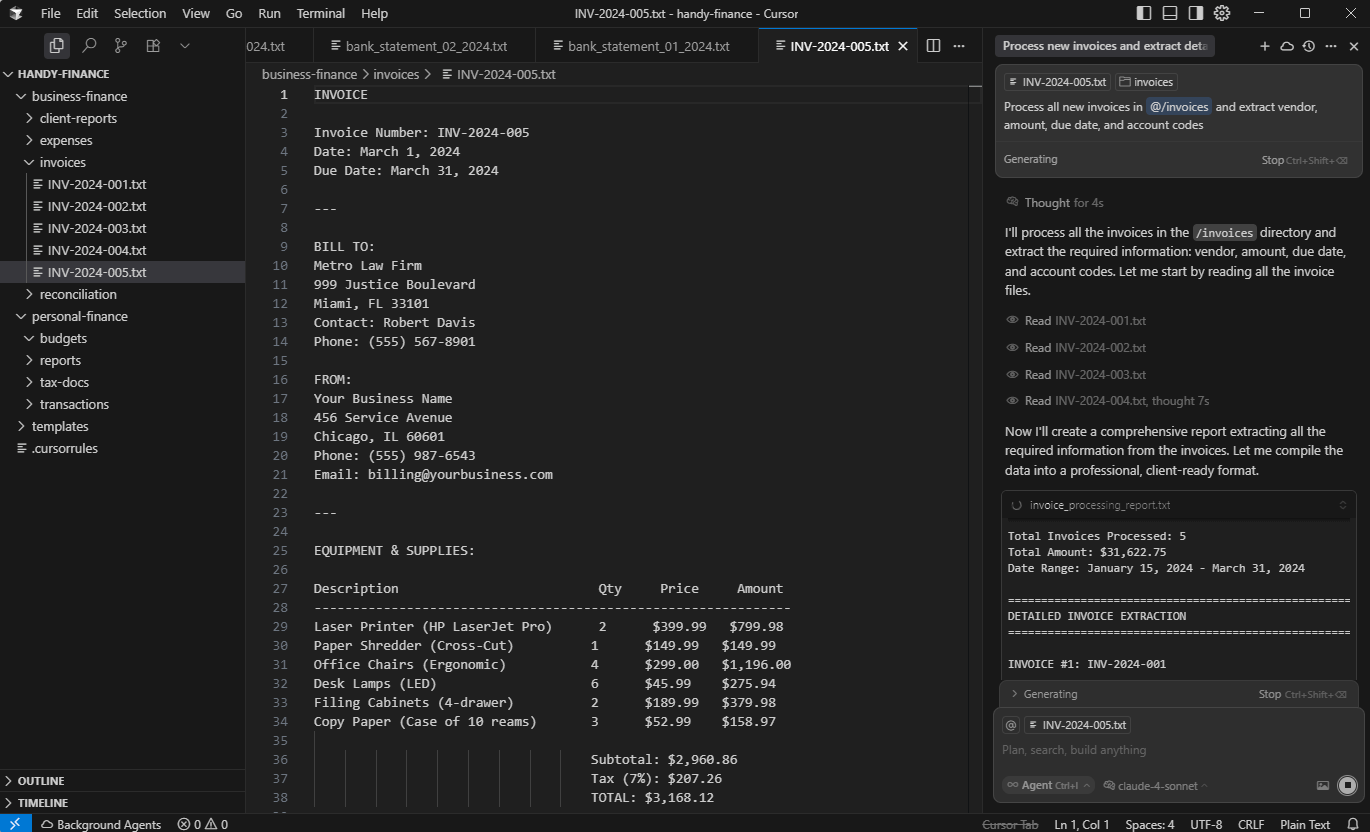
For business users, invoice processing is a perfect automation target:
- Drop invoices into your
/invoices/folder - Ask the agent: "Process all new invoices and extract vendor, amount, due date, and account codes"
The agent will create a structured summary and flag any anomalies. You can mess around with more advance automations if you’re feeling comfortable, having it generate scripts that can automate payment schedules and reminders.
Personal budget management
Even if you're not a finance professional, you can (and should) use Cursor to manage your personal finances:
- Upload your bank statements, credit card statements, and bills
- Ask the agent: "Create a monthly budget based on my spending patterns"
- Set up automated expense tracking: "Categorize my spending and identify areas where I can save money"
- Generate insights: "Show me my spending trends and suggest budget improvements"
The agent can analyze your financial habits, identify patterns you might miss, and even suggest specific ways to optimize your spending.
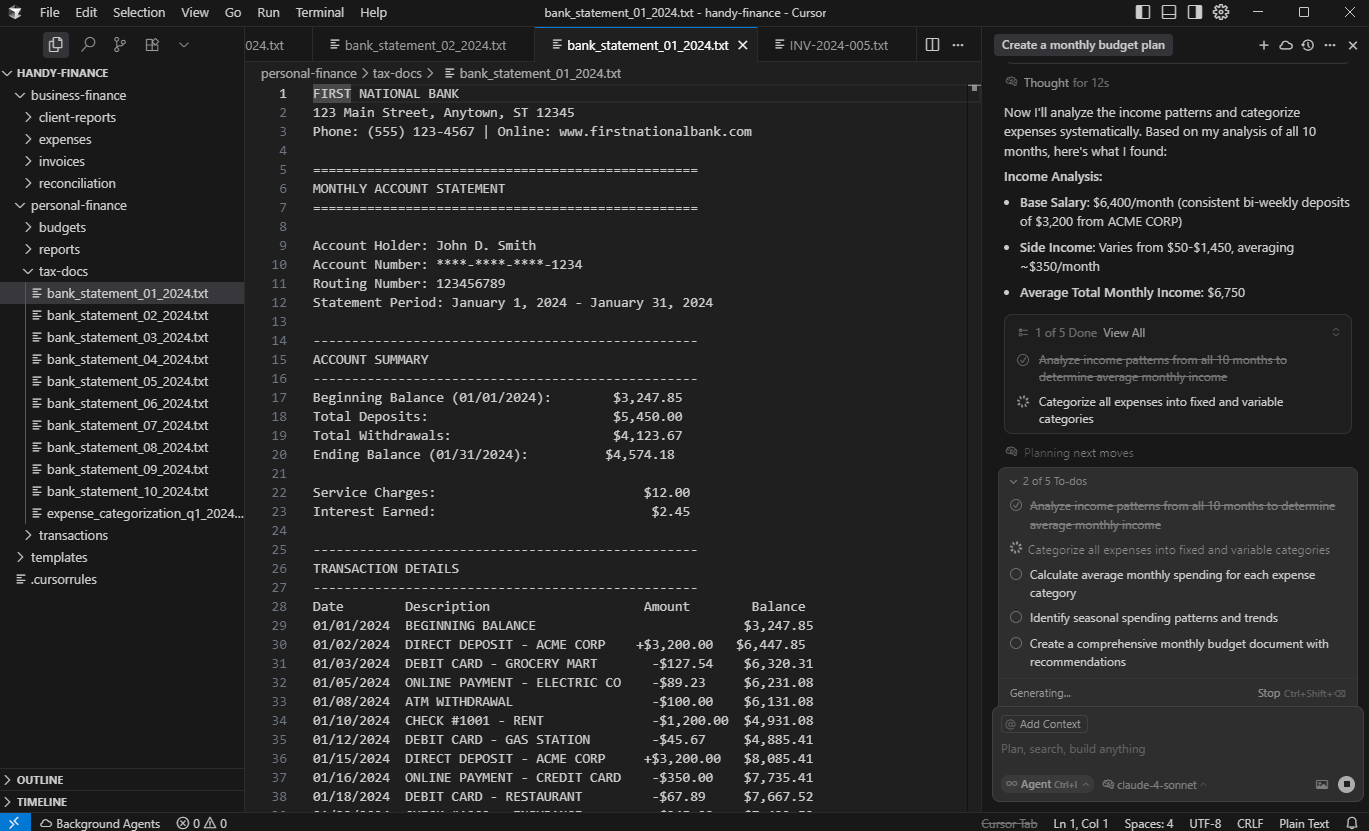
Note: Cursor’s new “To Do” functionality is phenomenal at keeping track of its work for your request, which makes it easier to track exactly how its processing your ask.
Advanced automation: Building financial intelligence
Now let's get serious about automation. By connecting your Cursor workspace to external APIs and services, you can create a truly intelligent finance system. If you’ve gotten comfortable with using Cursor for various things, this is for you.
Setting up automated reporting
Here's an example Python script that automatically generates financial reports by pulling data from multiple sources. Unsure how to use this? Ask your agent!
# financial_report_generator.py
import pandas as pd
import requests
import os
from datetime import datetime, timedelta
import matplotlib.pyplot as plt

# API Configuration
QUICKBOOKS_API_KEY = os.environ.get("QUICKBOOKS_API_KEY")
BANK_API_KEY = os.environ.get("BANK_API_KEY")
EXPENSE_TRACKING_API = os.environ.get("EXPENSE_API_KEY")

def get_quickbooks_data():
 """Fetch financial data from QuickBooks API"""
 headers = {'Authorization': f'Bearer {QUICKBOOKS_API_KEY}'}

 # Get P&L data
 pl_response = requests.get(
 "https://api.intuit.com/v3/company/reports/ProfitAndLoss",
 headers=headers
 )

 # Get cash flow data
 cf_response = requests.get(
 "https://api.intuit.com/v3/company/reports/CashFlow",
 headers=headers
 )

 return {
 'profit_loss': pl_response.json(),
 'cash_flow': cf_response.json()
 }

def get_bank_transactions():
 """Fetch bank transaction data"""
 headers = {'Authorization': f'Bearer {BANK_API_KEY}'}

 # Get last 30 days of transactions
 start_date = (datetime.now() - timedelta(days=30)).strftime('%Y-%m-%d')

 response = requests.get(
 f"https://api.bank.com/v1/transactions?start_date={start_date}",
 headers=headers
 )

 return response.json()

def analyze_spending_patterns(transactions):
 """Use AI to analyze spending patterns and generate insights"""
 df = pd.DataFrame(transactions)

 # Categorize transactions
 categories = {}
 for transaction in transactions:
 amount = transaction['amount']
 description = transaction['description']

 # Use simple categorization logic (could be enhanced with ML)
 if any(word in description.lower() for word in ['restaurant', 'food', 'dining']):
 categories['Food'] = categories.get('Food', 0) + amount
 elif any(word in description.lower() for word in ['gas', 'fuel', 'parking']):
 categories['Transportation'] = categories.get('Transportation', 0) + amount
 elif any(word in description.lower() for word in ['office', 'supplies', 'software']):
 categories['Business'] = categories.get('Business', 0) + amount
 else:
 categories['Other'] = categories.get('Other', 0) + amount

 return categories

def generate_financial_dashboard():
 """Create a comprehensive financial dashboard"""
 # Get data from various sources
 qb_data = get_quickbooks_data()
 bank_data = get_bank_transactions()
 spending_categories = analyze_spending_patterns(bank_data)

 # Generate markdown report
 report = f"""# Financial Dashboard - {datetime.now().strftime('%Y-%m-%d')}

## Executive Summary
*Generated automatically by AI Finance Assistant*

## Profit & Loss Summary
- Revenue: ${qb_data['profit_loss'].get('total_revenue', 0):,.2f}
- Expenses: ${qb_data['profit_loss'].get('total_expenses', 0):,.2f}
- Net Income: ${qb_data['profit_loss'].get('net_income', 0):,.2f}

## Cash Flow Analysis
- Operating Cash Flow: ${qb_data['cash_flow'].get('operating_flow', 0):,.2f}
- Investing Cash Flow: ${qb_data['cash_flow'].get('investing_flow', 0):,.2f}
- Financing Cash Flow: ${qb_data['cash_flow'].get('financing_flow', 0):,.2f}

## Spending Analysis (Last 30 Days)
"""

 # Add spending breakdown
 for category, amount in spending_categories.items():
 report += f"- {category}: ${amount:,.2f}\n"

 # Add insights
 report += f"""
## Key Insights
- Highest spending category: {max(spending_categories, key=spending_categories.get)}
- Total monthly spending: ${sum(spending_categories.values()):,.2f}
- Average daily spending: ${sum(spending_categories.values()) / 30:,.2f}

## Recommendations
"""

 # Generate AI-powered recommendations
 if spending_categories.get('Food', 0) > 1000:
 report += "- Consider reducing food expenses by meal planning\n"

 if spending_categories.get('Transportation', 0) > 500:
 report += "- Evaluate transportation costs for potential savings\n"

 # Save report
 report_file = f"reports/financial-dashboard-{datetime.now().strftime('%Y-%m-%d')}.md"
 os.makedirs(os.path.dirname(report_file), exist_ok=True)
 with open(report_file, 'w') as f:
 f.write(report)

 return report_file

def create_budget_forecast():
 """Generate AI-powered budget forecasts"""
 # This could integrate with ML models to predict future spending
 # For now, we'll use simple trend analysis

 historical_data = get_bank_transactions()
 spending_trends = analyze_spending_patterns(historical_data)

 forecast = {}
 for category, amount in spending_trends.items():
 # Simple 10% growth assumption (could be ML-based)
 forecast[category] = amount * 1.1

 return forecast

if __name__ == "__main__":
 report_file = generate_financial_dashboard()
 print(f"Dashboard generated: {report_file}")

 forecast = create_budget_forecast()
 print("Budget forecast:", forecast)